You may need to write off a charge, or a range of charges, when you know you cannot collect payment. This procedure creates a reversing transaction and a receipt for the reversing transaction. For information about reversing a charge, see “Charge Reversal”.
|
1
|
From the side menu, select Charges > Write Off Charge. The Write Off Charge filter appears. The filter has two parts. The top part locates charges to be written off. The bottom part determines how the charges are written off.
|

Property Type or select the code for a property, properties, or property list.
Resident Type or select the code for a resident or tenant.
Charge Code Type or select a charge code.
Status Select the resident or tenant status.
Charge Date Type or select the date range during which charges to be written off occurred.
Charge # Type a range of charge numbers.
Post Date Type or select the date you want the write-off to affect the tenant ledger and accounts receivable reports.
Post Month Type the month you want the write-off to affect the general ledger and financial reports.
Write Off Charge Code Type or select a charge code for all write-off transactions. If you do not specify a code, Voyager uses the original charge code for each charge.
Write-Off Notes Enter notes about the write-off. You can later use text from the Notes field of the Write Off screen as search criteria.
|
4
|

|
5
|
Click the Select check box for each charge you want to write off.
|
|
6
|
Click Post. Voyager asks you to confirm that you want to write off the charges.
|
|
7
|
Click OK. Voyager displays a message showing the number of charges written off, and the transaction control number for each reversing transaction.
|
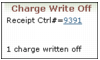
You can click the Receipt Ctrl# link to view the receipt for the reversing transaction. Each receipt records the charge information and the charge number for the charge written off.