
If you have a large portfolio, you may want to calculate deposit interest on a monthly basis. This decreases the time required to process deposit interest. You can set up a task to calculate and post deposit interest. For more information on creating tasks, see “Adding and Reviewing Task Runner Tasks” in the Voyager Service Manager Installation and Setup Guide.
|
1
|
Open the resident record. For more information, see “Reviewing and Editing Resident Records” in the Voyager Residential User's Guide.
|
|
2
|
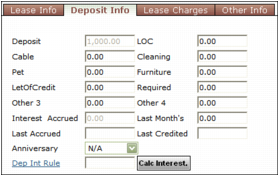
Click the Deposit Info tab.
|
|
3
|
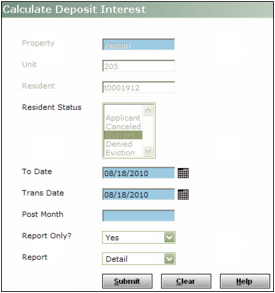
To Date Type or select the last day of the calculation period.
Voyager calculates interest for all deposit receipts from the date in the Last Accrued field on the Deposit Info tab to this date. This includes new deposit receipts that were added in Voyager with a transaction date that is prior to the date in the Last Accrued field.
Trans Date Type the date the transaction will be recorded.
Post Month Type the month the transaction affects the G/L.
Report Only If you want to view the report without posting the deposit interest, select Yes. If you want to view the report and to post the deposit interest, select No.
Report If you want Voyager to generate the Deposit Interest Liability Detail report, select Detail. If you want Voyager to generate the Deposit Interest Liability Summary report, select Summary.
|
5
|
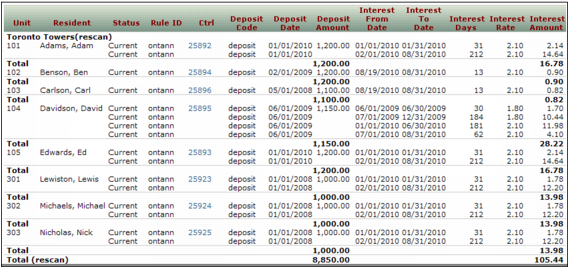
Click Submit. The report appears. Voyager creates a journal entry to post the accrued interest to the deposit interest liability account and deposit interest expense account.
|
|
6
|
|
7
|
Click Save.
|
|
1
|
From the side menu, select Residential > Deposit Interest > Deposit Interest Analytics. The Calculate Deposit Interest screen appears.
|

|
2
|
Property Type or select a code for one or more property or property lists.
Building Type or select a code for one or more buildings.
Unit Type or select a code for one or more units.
Resident Type or select a code for a resident.
Resident Status Select one or more resident statuses.
To Date Type or select the last day of the calculation period.
Trans Date Type the date you want the transactions posted.
Post Month Type the month you want the transactions posted.
Summarize By If you want the report to show the deposit and interest calculation information, select Detail. If you want the report to show the total deposit and calculated amount only, select Summary.
|
4
|
Click Calculate. Voyager calculates the deposit interest and displays the results in a table. The deposit interest calculated is automatically saved.
|
 |
You can post deposit interest by clicking Post. Before you post deposit interest, you should review the amount calculated for all residents.
If you navigate away from the Deposit Interest Analytics screen, you can review and post deposit interest by using the Unposted Interest Calculated report type. For more information, see “To review and post comprehensive deposit interest for multiple residents”.
|
|
1
|
From the side menu, select Residential > Deposit Interest > Deposit Interest Analytics. The Calculate Deposit Interest screen appears.
|

|
2
|
Property Type or select a code for one or more property or property lists.
Building Type or select a code for one or more buildings.
Unit Type or select a code for one or more units.
Resident Type or select a code for a resident.
Resident Status Select one or more resident statuses.
To Date Type or select the last day of the calculation period.
Trans Date Type the date you want the transactions posted.
Post Month Type the month you want the transactions posted.
Summarize By If you want the report to show the deposit and interest calculation information, select Detail. If you want the report to show the total deposit and calculated amount only, select Summary.
|
4
|
Click Display.
|
|
5
|
Click Post. A confirmation message appears. Voyager creates a journal entry for each resident posting the accrued interest to the deposit interest liability account and expense account.
|