|
1
|
 |
If you are using Voyager Construction and Job Costing, select Payable (JC) > Approve Payables. The Construction and Job Costing filter includes an additional field, which is described in this procedure with the designation “Construction only.”
|
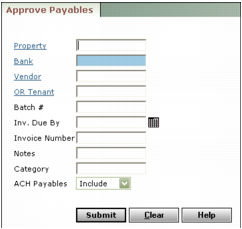
Property Type or select a property code.
Job (Construction only) Type or select a job code.
Bank Type or select a bank account code.
Vendor Type or select a vendor code.
OR Tenant Type or select a resident or lease code.
Batch # Type the payable batch number.
Inv. Due by To approve payables due on a specific date, type the date the invoices are due.
Invoice Number To approve a specific invoice, type the invoice number.
Notes To approve payables with particular text in the Notes field, type matching text in this field.
Category To approve payables of a specific category, type all or part of the category name.
ACH Payables Select whether you want to include only checks (Exclude), only EFT payables (ACH Only), or both checks and EFT payables (Include).
|
|
The term ACH (Automated Clearing House) is sometimes used interchangeably with EFT (Electronic Funds Transfer) in Voyager. For more information about using EFT, see the Voyager Electronic Banking User's Guide.
|
|
3
|
|
4
|
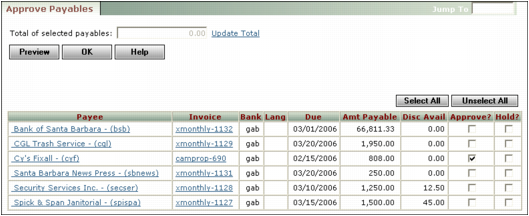
Approve Select this check box to approve the payable.
Hold Select this check box to hold payment. You will not see payables marked Hold when you process checks.
|
|
If either of the Insurance Expiration dates in the Vendor screen is expired, payables to that vendor do not appear in the Approve Payables screen. If you update the insurance information, the payables will appear in the Approve Payables screen.
|
|
5
|
Click Update Total to view the total amount of the approved payables.
|
|
6
|
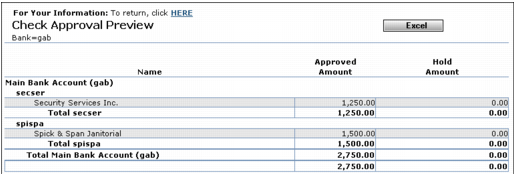
To preview the approvals on the screen before actually approving them, click Preview. A preview report displaying the approval details appears.
|
|
7
|
Click the link to return to the Approve Payables screen.
|
|
8
|
When you are finished approving payables, click OK. Voyager saves your approval selections, and updates payable records.
|