|
1
|
The Memo Information screen appears. The top part of the screen includes a table showing existing memos.
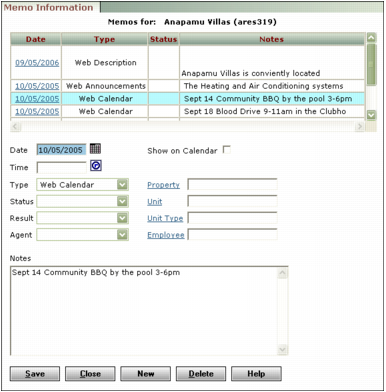
Date Accept the default or type a different date.
Show on calendar Select this check box if you want a link to the memo to appear on the dashboard calendar.
Time Accept the default or type or select a different time.
Type Select the event type. Event types are user-defined. Your system administrator can configure them by editing the Property Memo Types in the Environment screen in Voyager System Administration. For more information, see “Field Labels and Lookup Lists Configuration” in the Voyager Core Installation and Administration Guide.
Status Select the status of the memo.
Result Select the result of the event. Results are user-defined. Your system administrator can configure them by editing the Property Result Types in the Environment screen in Voyager System Administration. For more information, see “Field Labels and Lookup Lists Configuration” in the Voyager Core Installation and Administration Guide.
Agent Select the agent handling affairs for the property. Agents are user-defined. They can be set up by selecting the Agents option in the Functions menu on the Property screen for a residential property. Agents are not used for non-residential properties.
Property Type or select a property code.
Unit Type or select a unit code.
Unit Type Type or select a unit type code.
Employee Type or select an employee code.
Notes Type the text of the memo.
|
4
|
Click Save.
|