|
1
|
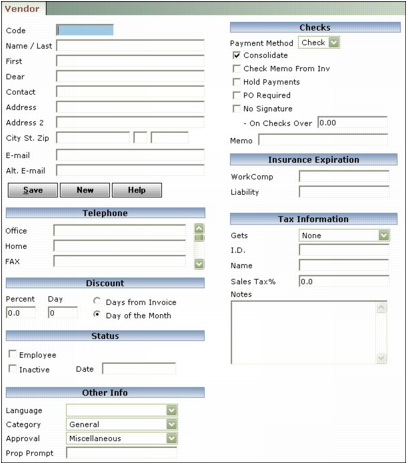
Code Type a code for the vendor.
Name Voyager provides two fields for the name. It combines these two fields to form the payee on checks, the first line on vendor mailing labels, and the name on vendor reports.
 |
Dear Type the text that should appear after the word Dear at the beginning of a letter. For example, if your contact is Patricia Smith, you might type Ms. Smith in the Dear field. If you are unsure of the appropriate courtesy title, you can type the name with no courtesy title. For example, if your contact is Pat Smith, you might type Pat Smith in the Dear field.
Contact Type the complete name (first and last) of the contact person.
Address...City-St-Zip Complete the fields for the vendor's street address.
E-mail/Alt E-mail Type the vendor's e-mail addresses.
|
3
|
Complete the Telephone fields.
|
|
4
|
 |
Entries in the Discount section determine the default due date for invoices from this vendor, so you should complete this section even if the vendor does not offer a discount for early payment.
|
Percent Type the percentage discount the vendor allows. Or, if you are using Voyager Construction Management and Job Costing and you use retention, type the default retention percentage for payables for this vendor. You can change amount for individual payables when you add them.
Day Type the last day the discount is available.
Days from Invoice Select this option if the discount expires a certain number of days from the invoice date.
Day of Month Select this option if the discount expires on a specific day of the month. Voyager uses the month of the invoice date to determine when the discount expires.
|
5
|
Complete the appropriate Status fields:
|
Employee Select this check box if this vendor is also an employee of your organization. You can require additional financial approval for payable invoices to this vendor by setting up a special vendor employee approver.
Inactive Select this check box for vendors you no longer use. Voyager will remove the vendor code from lookup lists, but the vendor will still appear in reports that include transactions from prior to the inactive date.
Date Type the date the vendor was marked inactive. This field is informational only; it does not affect whether a vendor appears in lookup lists.
Contractor Select this check box to select the Retention check box on payables for this vendor by default. You can change the Retention setting on individual payables when you add them. This check box appears only if you are using Voyager Construction Management and Job Costing.
Require Contract on Payable Select this box if you want to require contracts for payables to this vendor.
|
6
|
Complete the Other Info section:
|
Language Select the language for correspondence with the vendor. If the Check Format By field in the Bank Account Info screen is set to Vendor, this setting also applies to checks.
 |
The remaining fields in the Other Info section are user-defined. Complete them in accordance with your organization's requirements. For information about defining user-definable fields, see “Adding, Reviewing, and Editing Field Labels and Selection Lists” in the Voyager Core Installation and Administration Guide.
|
|
7
|
Complete the Checks fields:
|
|
|
These settings become the defaults for this vendor. When you click the Prompt Payee button in the Payable screen after selecting this vendor as the payee, Voyager applies these defaults to the payable.
|
Payment Method Select the payment method you will normally use to pay this vendor. Select Check if you will normally pay this vendor with a check. Select EFT if you will normally use Electronic Funds Transfer to pay this vendor.
|
|
When you create a payable, the Payment Method in the Payable screen is set to Check until you click Prompt Payee. Then Voyager applies the Payment Method from the Vendor screen. You can manually override the default payment method when you create a payable.
|
|
|
The term ACH (Automated Clearing House) is sometimes used interchangeably with EFT (Electronic Funds Transfer) in Voyager. For more information about using EFT, see the Voyager Electronic Banking User's Guide.
|
Consolidate Select this check box to pay multiple invoices for the same vendor with one check.
Check Memo From Inv Select this check box to print the contents of the Notes field in the Payable screen to the memo field on the check.
|
|
Each invoice has its own Notes field, so you cannot use the Check Memo From Inv feature if you consolidate invoices.
|
Hold Payments Select this check box to prevent printing a check to this vendor through regular check processing.
PO Required Select this check box if you require purchase orders for payables to the vendor.
No Signature--On Checks Over If your checks use a bitmap signature, complete these fields to suppress the bitmap when a check exceeds the authorized limit.
Memo Type remarks to print on the checks.
|
9
|
Complete the Tax Information fields:
|
Gets Select the type of tax documents, if any, you are responsible for providing to the vendor: 1099 (U.S.), T5018 (Canada), or None.
I.D. Taxpayer Identification Number (Employer Identification Number, Individual Taxpayer Identification Number, or Social Security number).
Name If the vendor will receive a 1099 from your organization, and the name that appears in the name fields at the top left of the screen does not match the name associated with the federal tax ID number, type the federal tax name here. Otherwise leave this field blank. The federal tax name will print on 1099 forms above the name that appears at the top left of the Vendor screen.
Sales Tax% If you will use this vendor for work orders, and you want sales tax calculated based on the vendor, type the sales tax percentage. This percentage is used only if no tax percentage is specified for the property in the WO Tax$% field of the Property Control screen.
|
10
|
Click Save.
|