|
1
|
From the Voyager side menu, select Setup > System > Charge Code.
|
 |
If your system is configured for multiple charts of accounts, the Charge Codes filter appears. Complete the filter and click Submit.
|
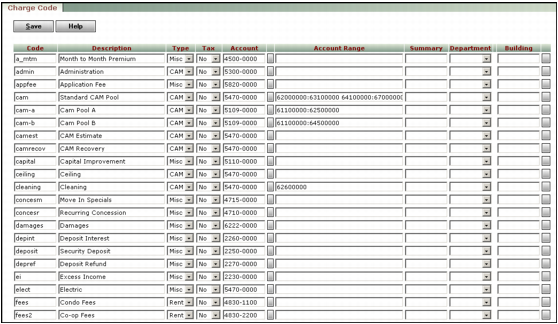
The Charge Code screen appears.
|
2
|
|
3
|
Click Save.
|
|
TIP Use short, easily remembered codes like “gas” or “water” or “maint” to reduce user reliance on lookup lists.
|
|
|
Rent Fixed charge for a specific period for rent, rent increases, rent concessions, regular condo fees, and so on. (Fees for parking spaces and storage areas typically use the Misc type.) Voyager displays the sum of Rent-type charges in the Rent field on the Resident screen (Residential and other multifamily products), Lease screen (Commercial), or Scheduled Charges tab of the Owner screen (Condo, Co-op, and HOA).
Misc Any charge other than rent, CAM or overages.
CAM Variable charge for common-area maintenance (expense recovery) charges or other charges based on commercial property expenses. Voyager calculates CAM charges based on expense accounts. For more information, see the “Expense Recovery” chapter in the Voyager Commercial User's Guide.
Ovg Variable overage charge based on a retail tenant's reported sales or revenue. For more information about using sales overage and percentage rent charges, see “Entering Sales Figures and Calculating Overages” in the Voyager Commercial User's Guide.
|
|
|
Select Yes to enable the posting of sales tax for charges processed using the Commercial Billing feature. See “Commercial Billing” in the Voyager Commercial User's Guide and “Posting Sales Tax” in the Voyager Core User's Guide.
|
|
|
NOTE Voyager bases GPR rent and concessions reporting on the G/L account rather than the charge code. All rent charge codes must post to the same G/L account, and nothing other than rent should post to that account.
|
|
|
If CAM is selected in the Type field, you can define one or more recovery-expense (debit) accounts. Indicate a range by placing a colon (:) between the starting and ending account numbers, and a space between account numbers or ranges with gaps between them.
NOTE If you upgraded to Voyager from Enterprise, or use tenant-based rather than lease-based commercial property-management, these fields may contain legacy information.
|
|
|
For example, you could enter Utilities in the Summary column for the Garbage, Sewer, and Water charge codes if you wanted to view one number for these three utilities on reports, but to maintain the ability to view individual totals. The other alternative--using the Utilities charge code for all three kinds of charges--would give you the same reports, but without the ability to track individual utilities if you ever needed to do that.
|
|
|
If your Voyager setup includes G/L segments, a column for each segment appears to the right of the Summary column. The graphic above includes a column for two segments: Department and Building. You associate charges with segments by using a charge code associated with the segment. For more information about segments, see “G/L Segments”.
|